"Automating Meeting Minutes with Local AI on macOS"

Leibniz Li
@leibnizliIn modern business environments, meetings are essential, but summarizing them is a chore. Many professionals spend hours after a long Zoom, Teams, or face-to-face discussion listening back to recordings, typing up transcripts, and compiling key takeaways.
While manual transcription is accurate, it is incredibly slow and mentally exhausting. Fortunately, you don’t need to spend hours writing summaries or resort to uploading sensitive client audio to cloud services.
By combining local hardware-accelerated Whisper models with offline large language models (LLMs), you can establish a highly efficient, secure, and automated meeting minutes workflow right on your macOS desktop. Here is how it works.
Step 1: Record and Sync Your Audio
An automated workflow starts with high-quality input. Depending on the type of meeting, you have several simple options:
- Voice Memos: If you're attending a live, in-person meeting, recording on your iPhone using the native Voice Memos app is highly convenient. Since Apple syncs these files automatically via iCloud, they will appear in the Voice Memos app on your Mac almost instantly.
- Video Conferencing: For virtual meetings on Zoom, Microsoft Teams, or Google Meet, you can save a local recording of the session directly to your Mac as an
.mp4or.m4afile.
Once you have your audio or video file locally on your Mac, you are ready to begin the conversion process.
Step 2: Leverage Hardware-Accelerated Local Transcription
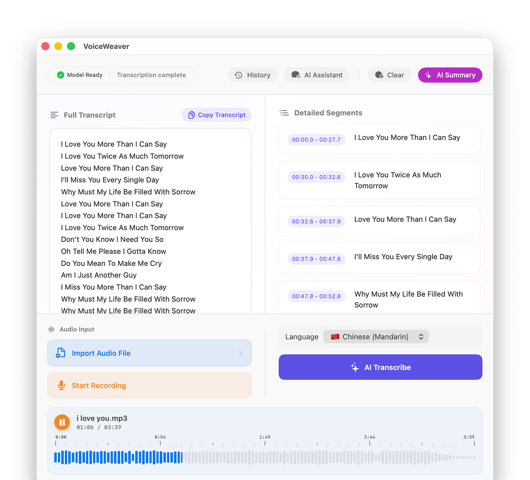
Instead of spending hours manually listening to your recording and typing it word-for-word, you can delegate the task to a native transcription application running local machine learning models.
With the release of OpenAI’s Whisper model, desktop software can run speech-to-text calculations locally on your Mac. Since modern Apple Silicon (M-series processors) has a built-in GPU and Neural Engine, this process is highly optimized.
While transcribing a one-hour meeting is not instantaneous and takes a few minutes of processing depending on your hardware and selected model size, it operates locally, automatically, and at a fraction of the playback time. You can simply drag and drop the audio file, start the process, and focus on other tasks while the application transcribes the entire recording with high precision, complete with timestamps and speaker segments.
Step 3: Turn Transcripts into Actionable Markdown with Local LLMs
A raw transcript can be thousands of words long, making it difficult for team members to digest. This is where local AI models shine.
Rather than copying the transcript into online web tools, a native application can feed the transcribed text into a local large language model (LLM) running offline on your Mac. You can prompt the model to analyze the text and generate structured documents in Markdown format:
- Executive Summary: A concise, high-level overview of the topics discussed.
- Key Decisions: A clear bulleted list of what was agreed upon during the meeting.
- Action Items: A structured list of tasks, including who is responsible for each item, to ensure follow-through.
By keeping the transcript format in Markdown (.md), you can easily copy and paste the formatted text directly into your project management tools, email clients, or company wikis (like Notion or Obsidian).
Establish Your Local Workflow with VoiceWeaver
Automating your meeting minutes doesn't require cloud subscriptions, risk of data leaks, or tedious manual typing. With the right tools, your Mac is powerful enough to handle the entire pipeline natively.
Try VoiceWeaver for macOS. VoiceWeaver is a premium native desktop application designed to streamline meeting workflows. By combining local, hardware-accelerated Whisper model speech-to-text with secure, offline LLM summarization, VoiceWeaver converts your audio files into highly accurate transcripts and generates structured Markdown meeting notes—all completely offline, privately, and securely on your Mac.