How to Edit Hosts Files on Mac with Helm

Leibniz Li
@leibnizliFor web developers, software engineers, and network administrators, managing host mappings is a daily necessity. Whether you are pointing a domain name to a local Docker container or testing a pre-release staging server, you need a quick way to override DNS resolution.
In this guide, we will cover how to edit the hosts file on Mac manually using Terminal, explain why manual management is tedious and risky, and introduce the ultimate macOS hosts file manager to streamline your workflow.
Part 1: How to Edit the Hosts File on Mac Manually
The hosts file on macOS is a plain text file located at /etc/hosts (which is a symlink to /private/etc/hosts). It is protected by system permissions, so editing it requires administrator (sudo) access.
Step 1: Open the Terminal
Press Cmd + Space to open Spotlight, type Terminal, and hit Enter.
Step 2: Open the Hosts File in Nano Editor
To open the file securely using the command-line text editor Nano, type the following command and press Enter:
sudo nano /etc/hosts
You will be prompted to enter your Mac's administrator password. Note: The terminal won't show characters or asterisks while you type your password for security reasons—just type it out and hit Enter.
Step 3: Add Your Custom Mappings
Use the arrow keys on your keyboard to navigate to the bottom of the file. Do not alter or delete the default configurations (like 127.0.0.1 localhost).
Add your custom IP address and domain mapping at the end of the file in this format:
127.0.0.1      my-local-site.test
192.168.1.50   staging.mysite.com
Step 4: Save and Exit Nano
- To save your changes: Press
Ctrl + Oand pressEnterto confirm. - To exit the editor: Press
Ctrl + X.
Step 5: Flush Your DNS Cache on Mac
Once you edit the hosts file, your Mac might still use old cached DNS rules. To force macOS to recognize your new mappings, you must flush the DNS cache on Mac. Run the following command in Terminal:
sudo killall -HUP mDNSResponder
Your system will immediately reload the hosts configuration, and your custom domain mappings will be active.
Part 2: The Pitfalls of Manual Hosts File Management
While the Terminal method works, doing it multiple times a day is a massive source of cognitive friction:
- Permission Fatigue: Having to type
sudoand enter your password every single time you need to toggle a mapping is annoying. - No Concept of Profiles: If you work on multiple projects, you have to comment lines out (
#) and uncomment them constantly, turning your/etc/hostsfile into a cluttered mess. - Forgetting to Flush DNS: It’s easy to forget to run the
mDNSRespondercommand, leaving you wondering why your site isn't loading. - Syntax Errors: A single typo (such as a missing tab or space) can break system-critical resolution mappings, causing network issues.
Part 3: Looking for a Gas Mask Mac Alternative? Meet Helm
For years, the go-to utility for macOS power users was Gas Mask, a popular open-source hosts file manager. However, Gas Mask has been unmaintained for a long time, causing UI glitches, stability issues, and security warnings on modern Apple Silicon (M1/M2/M3) Macs.
Other modern alternatives like SwitchHosts are built on Electron, which means they easily consume hundreds of megabytes of RAM just to manage a text file.
This is why we built Helm—the ultimate native macOS hosts file manager and hosts editor for Mac.
Part 4: Why Helm is the Best Hosts Editor for Mac
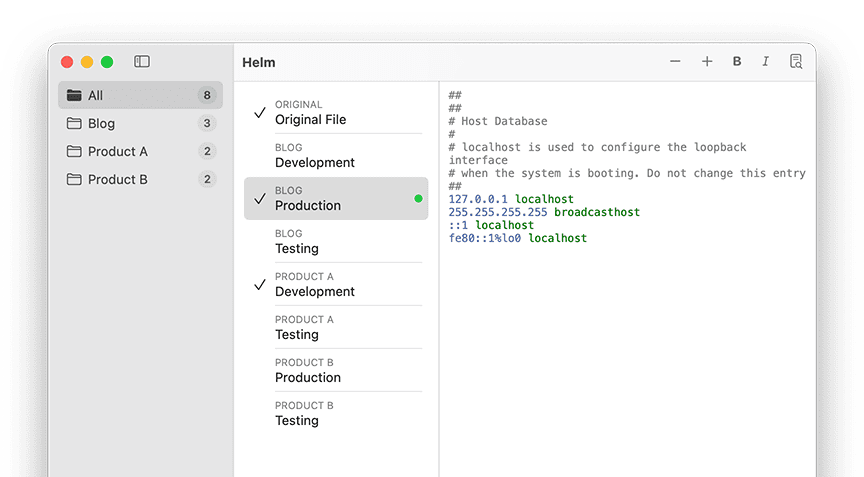
Helm was designed from the ground up specifically for macOS. It lives in your menu bar and turns environment switching into a single-click experience.
🚀 Key Features of Helm:
- Environment Profiles: Create dedicated profiles for different projects (e.g., "Docker Local", "Staging", "Client A Production"). Toggle them on and off with a single click.
- Smart Merging Logic: Helm never overwrites your system-critical hosts file. It cleanly merges your active profile settings with your Mac's default system settings. When you turn off a profile, your hosts file is restored to its pristine state automatically.
- Automatic DNS Flushing: Never type
killall -HUP mDNSResponderagain. Helm automatically flushes your DNS cache the second you toggle or edit a profile. - Fully Native & Apple Silicon Optimized: Helm is built natively for macOS. It uses virtually zero resources, runs lightning-fast, and features a gorgeous interface that matches macOS Sonoma and Sequoia perfectly.
- Privacy-First: Like all ARayOfSunshine tools, Helm operates entirely offline. Your custom domain layouts, IP addresses, and project profiles never leave your Mac.
Simplify Your Workflow Today
Stop editing system configuration files in the terminal and risking syntax errors. Switch development environments, staging sites, and local servers instantly and safely.
Ready to experience the best hosts manager for Mac? Explore Helm for macOS and download it today.