Audio Extractor and Converter for iPhone: AudioWeaver

Leibniz Li
@leibnizliMobile video content creation is everywhere. Whether you are capturing 4K videos on your iPhone, recording video presentations, saving social media clips, or archiving lectures, there often comes a time when you need only the sound.
Extracting soundtracks from video on iOS has historically been clunky. Most video-to-audio converter apps either bombard you with full-screen ads, restrict file formats, compress audio to poor bitrates, or force you to upload private video files to cloud servers.
If you are looking for an all-in-one audio extractor and converter for iPhone that doubles as a privacy focused audio editor for iPhone, AudioWeaver provides an elegant, offline mobile audio workstation.
Download AudioWeaver on the App Store
The Limitations of Cloud Audio Extractors
Extracting audio through online websites or cloud-based apps presents major headaches on iPhone:
- Large Video File Uploads: A 5-minute 4K iPhone video can easily exceed 1GB to 2GB in size. Uploading gigabytes over mobile networks just to extract an audio track wastes data and takes forever.
- Privacy Violations: Your Camera Roll contains personal memories, confidential work footage, or private interviews. Uploading complete videos to random converter sites exposes you to security risks.
- Format Restrictions: Many simple extractors only export low-bitrate MP3s, leaving you without options for lossless WAV, FLAC, or Apple-optimized M4A files.
AudioWeaver solves this by processing videos directly inside your iPhone's local sandbox, delivering instant extractions without internet access.
Complete Audio Toolkit in One App
AudioWeaver is not just a format converter; it gives you a complete end-to-end audio pipeline.
1. High-Speed Video to Audio Extraction
AudioWeaver lets you import videos straight from your Photos library or the Files app. It instantly strips away the video stream and extracts the pure, untouched audio track in seconds:
- Multi-Track Support: If your video contains multiple audio streams (such as multilingual tracks or separate microphone channels), AudioWeaver allows you to isolate and extract specific audio channels.
- Batch Extraction: Process multiple video clips simultaneously to save precious time during high-volume editing.
2. Universal Audio Format & Codec Conversion
Need your audio compatible with a specific car stereo, DAW, or podcast host? AudioWeaver supports a comprehensive roster of audio formats:
- Formats: MP3, M4A, M4R (custom iPhone ringtones), FLAC, WAV, OGG, WebM, and CAF.
- Codec Controls: Choose between modern codecs like AAC, ALAC (Apple Lossless), Opus, and Vorbis.
- Smart Compression: Adjust bitrates (from 64kbps to 320kbps), modify sample rates (such as 44.1kHz or 48kHz), and select channel layouts (mono/stereo) with built-in quality protection to avoid unnecessary upscaling.
3. Built-in Waveform Trimming & Segment Editing
Once you have extracted your audio, you rarely need the entire length. AudioWeaver features an intuitive waveform editor:
- Zoom into millisecond-accurate sound waves.
- Split recordings into segments or delete unwanted sections.
- Apply subtle fade-ins and fade-outs to eliminate sudden pops and clicks.
- Export the trimmed result as a single consolidated file or distinct segments.
4. On-Device Noise Reduction & Audio Enhancement
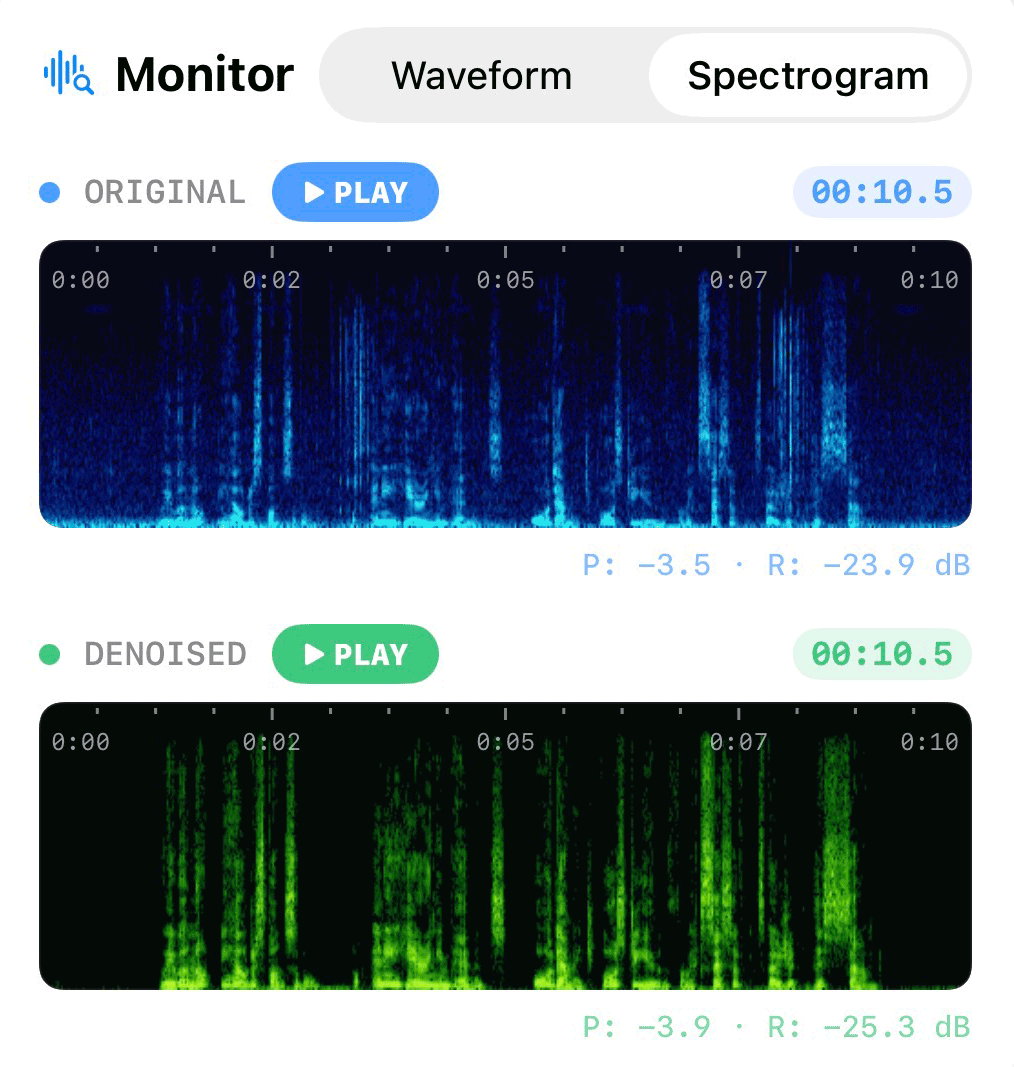
What happens when your extracted video audio is plagued by background noise or muffled voices? Instead of switching to another app, AudioWeaver functions as the best offline audio cleaner for iPhone. With one tap, run on-device AI voice noise reduction to clean background hums, fan whirs, or wind noise before exporting.
How to Extract and Convert Video Audio on iPhone
Follow these steps to turn any video into clean audio with AudioWeaver:
Step 1: Select Your Video
Open AudioWeaver and tap Audio Extractor (or import directly from Photos or Files). Select the video file you wish to process.
Step 2: Choose Your Extraction Mode
Select the desired audio track or channel. If processing several clips, use batch mode to queue them up together.
Step 3: Edit and Polish (Optional)
Open the extracted audio in the Editor to trim beginning and ending dead zones. If background noise is present, tap Voice Noise Reduction to isolate clear speech.
Step 4: Choose Format & Export
Select your target export format (such as M4A for Apple devices, MP3 for broad sharing, or WAV for lossless studio quality). Adjust your target bitrate and tap Export to save to Files or share via AirDrop.
The Ultimate Local Audio Studio for iPhone
With AudioWeaver, you no longer need multiple disjointed utilities to extract, edit, clean, and convert your audio. Everything runs locally, securely, and lightning-fast on your device.
Experience the power of a modern, offline audio workflow on your iPhone with AudioWeaver.