Clean Podcast Audio & Remove Wind Noise on iPhone

Leibniz Li
@leibnizliRecording podcasts and voice interviews on an iPhone has never been more popular. With high-fidelity microphone accessories and built-in Apple microphones, you can capture spontaneous discussions anywhere. However, field recording introduces unpredictable audio nightmares: wind gusts whipping against the microphone capsules, passing cars, air conditioning rumble, and loud room acoustics.
If you have ever tried to rescue an outdoor interview, you know how frustrating it is. Wind noise produces chaotic low-frequency bursts that overpower vocal frequencies.
Fortunately, you do not need a desktop digital audio workstation (DAW) or expensive cloud services to clean your tracks. With AudioWeaver, you can remove wind noise from recording on iPhone and clean podcast audio locally on iPhone in just a few taps.
Download AudioWeaver on the App Store
Why Traditional EQ Fails to Fix Wind Noise
When creators encounter wind noise, the conventional advice is to apply a high-pass (low-cut) filter around 80Hz to 120Hz. While this removes sub-bass rumble, it rarely solves the real problem:
- Mid-Range Vocal Masking: Strong wind turbulence creates broadband acoustic energy extending into the 200Hz to 800Hz range—precisely where human voice fundamentals live.
- Thin, Hollow Speech: Aggressive high-pass filtering cuts out the natural body and warmth of the speaker's voice, leaving speech sounding tinny, hollow, and unnatural.
- Pumping and Distortion: Static noise gates open and close abruptly whenever the speaker pauses, creating distracting "pumping" artifacts against gusty wind backgrounds.
To truly eliminate wind rumble without damaging vocal timbre, you need intelligent acoustic separation that understands what human speech sounds like.
How AudioWeaver Cleans Podcast Audio Locally
AudioWeaver integrates on-device neural speech processing designed to isolate voices from non-speech acoustic interference. Everything happens directly inside your iPhone's hardware, meaning you can edit in an airplane, at a remote cabin, or in a coffee shop without an internet connection.
1. Neural Voice Noise Reduction & Speech Isolation
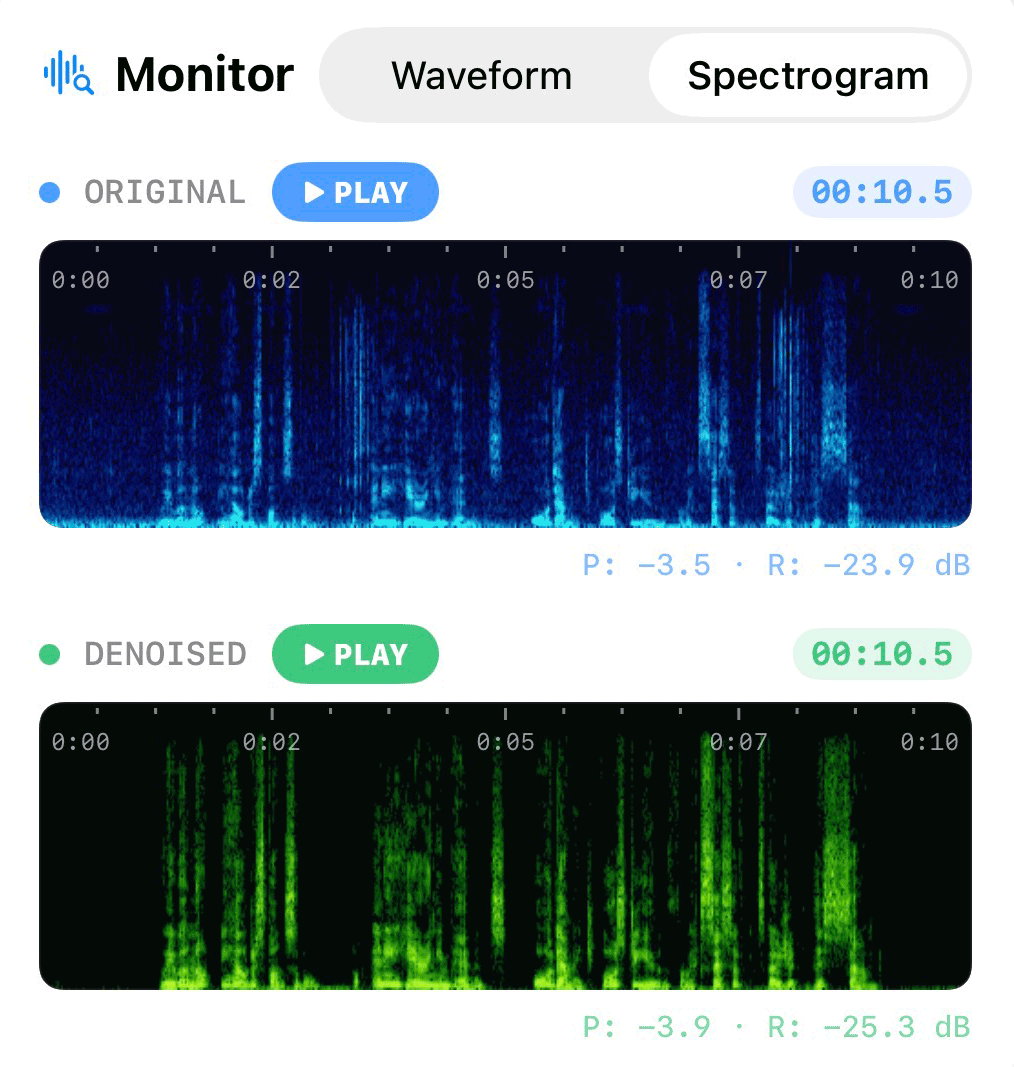
AudioWeaver replaces primitive frequency filters with deep neural networks. By evaluating phase and spectral characteristics, the AI model separates speech energy from non-periodic noise like wind buffeting, outdoor traffic, and environmental rumble. The result is clean, articulate dialogue that sounds like it was recorded in a sound-treated room.
2. Auto De-Clip for Wind Overloads
Sudden gusts of wind frequently push mobile microphone diaphragms beyond their dynamic range, causing digital clipping. AudioWeaver's built-in Cubic Hermite Spline Interpolation automatically detects clipped wave crests and reconstructs smooth waveforms before noise suppression, preventing nasty harsh digital buzzes.
3. Integrated Dynamic Normalization
Podcasts require consistent volume levels across different speakers. AudioWeaver provides Dynamic Normalize and Loud Normalize tools to ensure your episodes conform to broadcast standards without clipping or unnatural compression.
Step-by-Step Guide: Cleaning Outdoor Podcasts on iPhone
Here is a practical workflow to transform raw outdoor recordings into polished podcast episodes using AudioWeaver:
Step 1: Import Your Audio Track
Open AudioWeaver and import your podcast or voice recording from Files, Voice Memos, or your Camera Roll video files.
Step 2: Trim Dead Air and False Starts
Use AudioWeaver's precision waveform editor to cut out unwanted coughs, long pauses, or mic bumps. You can split audio segments, delete unwanted sections, and apply subtle fade-ins or fade-outs for seamless transitions.
Step 3: Run AI Voice Noise Reduction
Tap the Voice Noise Reduction button. The on-device engine instantly scans your track, suppressing wind gusts and ambient background rumble. You can listen to immediate before-and-after comparisons to confirm voice clarity.
Step 4: Enhance Vocal Presence
Under the Effects panel, apply the Equalizer preset optimized for speech to add crispness to higher frequencies and remove chesty mud. If your interview partner spoke softer than you, apply Dynamic Normalize to bring both voices into balanced harmony.
Step 5: Export for Distribution
Export your finalized episode directly to MP3 (at 128kbps to 320kbps for standard podcast RSS feeds) or uncompressed WAV / FLAC for multi-track mixing.
Professional Mobile Audio, Anywhere You Go
You no longer need to scrap valuable field interviews or outdoor podcast episodes due to bad weather or unexpected environmental noise. By keeping an intelligent, app to remove background noise from voice recording right on your iPhone, you can publish pristine, broadcast-ready episodes from anywhere in the world.
Elevate your podcast audio quality today with AudioWeaver.